
What Can AI RAP VIDEO Do, and When Do You Need Another Editor?
See which photo-based generation controls AI RAP VIDEO provides and which tasks require another tool, including music editing and lyric captions.
AI RAP VIDEO provides photo-based generation controls. It is not a music editor or a lyric-video editor. If you already have a song and need to cut it, arrange shots around it or time words on screen, you will need another tool.
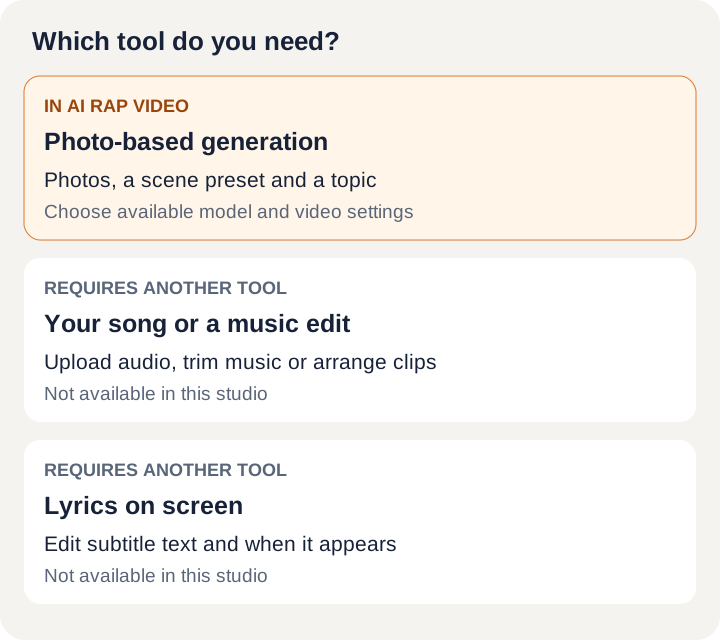
What you can set in this studio
In Rap video mode, add two separate portraits or one photo of both people. Choose an available scene preset, then select the model and video settings offered for it. The Names and occasion field lets you describe the subject you want the rap to be about.
That field sends text direction with the generation request. It is not a lyrics editor, and naming an activity does not create a matching scene or an editable sequence of shots. The output still needs review; a topic does not guarantee specific words, pronunciation or actions.
The studio also has an Effects mode. Its photo requirements and available settings depend on the effect. Choosing an effect is a generation request, not a way to edit a finished video.
If you already have a song
The current studio has no MP3 or WAV upload. You cannot import a recording here and ask the visible people to perform that exact track.
For example, a birthday topic about your weekly tennis game can be entered in the Rap video form. A request to use the chorus from a specific recording needs a tool that explicitly accepts audio. Do not buy credits here expecting an audio-upload option to appear afterward.
Cutting music, changing its volume, combining tracks and arranging clips across a complete song require an external audio or video editor. None of those controls are available in this studio.
If you want lyrics on screen
You will need an external editor with editable text and timing controls. AI RAP VIDEO does not provide automatic lyric transcription, a subtitle editor or a caption timeline.
Text written in Names and occasion is a generation instruction, not text that will be placed on screen. If you just want to send a personal note with the result, download the video and add the note in your messaging app or social-media post.
What you can do with a completed result
The studio and My videos provide task status and access to available results. You can play and download a completed video. There are no controls here for trimming its shots, replacing its soundtrack or adjusting individual mouth movements.
Changing the photos, topic or settings and submitting again creates a new generation request with its own credit quote. It does not modify the earlier file.
For the controls that are available, follow the photo-to-video walkthrough. If your main requirement is a fixed song, exact lyrics or manual editing, choose an editor that supports that requirement before purchasing generation credits.